|
Cyber
Question:
How
do I set up my Samsung account and add App Cash to purchase apps directly from
my player?
Answer:
Getting
Started:
- You
will need a PC
- Internet
connection
- The
email address and password used when you registered your product. If you
have forgotten your password, see step 2 for reset instructions.
- If
you have forgotten the email address used you will have to create a new
account,
click
here
for
step by step instructions for creating an account.
To
login to your Samsung account and add App cash, follow the steps below.
- Using
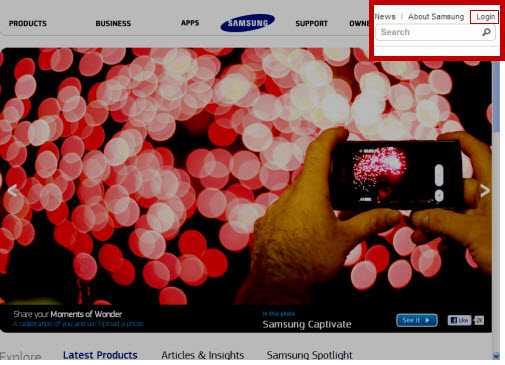
your PC go to www.samsung.com and then click Login
on the top right of
the page. The Owners Login page loads.
- Enter
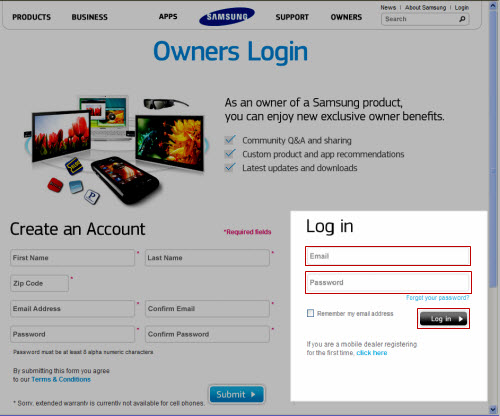
the email address and password used when you first registered your product.
If you have forgotten your password, click 'Forgot your password' below
the password field to reset it.
- The
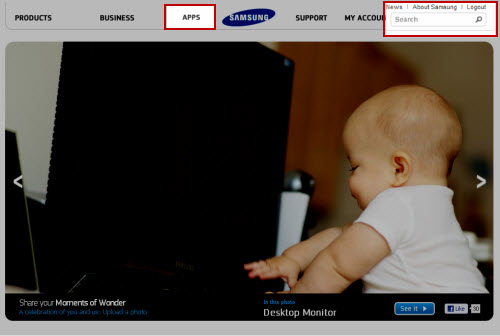
main Samsung web page is displayed as you are logged into your account. Notice
‘Logout’ on the top right of the page.
- Click
Apps at the top of the page. The main apps page displays.
- Scroll
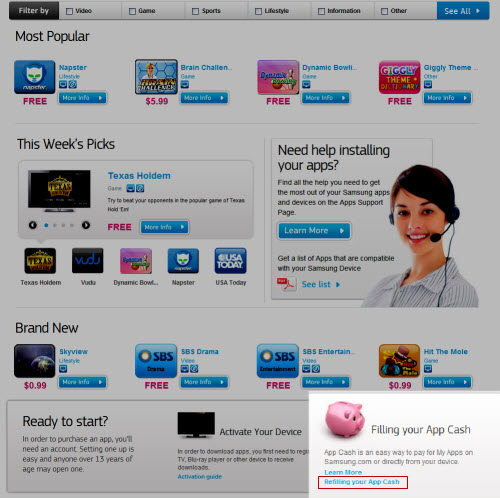
to the bottom of the page and click Refilling your App Cash.
- The
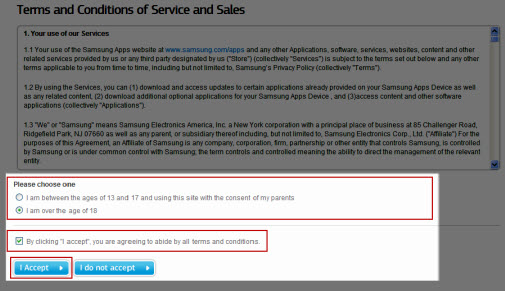
‘Terms and Conditions of Service and Sales’ agreement is displayed. Make
the appropriate selection under ‘Please choose one’. If you agree
to the terms and conditions, place a checkmark and then click I accept
to continue.
- The
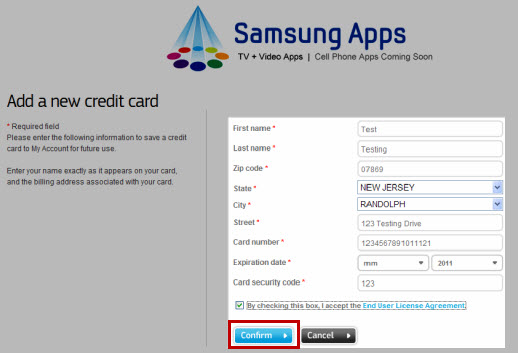
‘Add a new credit card’ screen is displayed. An asterisk is placed
to the left of each mandatory field. Complete the form, place a check mark
if you agree to the ‘End User License Agreement’ and then click Confirm.
- A
confirmation page is displayed confirming your credit card has been registered.
Your browser is then redirected back to the main Apps web page as pictured in
step 8. You have successfully created a Samsung Apps account and registered
your credit card.
- You
now have the option of linking your Samsung Apps account to your Blu-ray
player; however, you will not be able to purchase apps directly from
your player until you add app cash. You can, however, download
any free apps not previously available through your player. To
add Apps Cash, continue to step 9 below.
- Now
we’ll add app cash to your account so that you can purchase Apps directly
from your player.
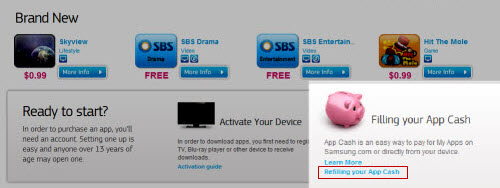
- Scroll
to the bottom of the Main Apps page and click Refilling your App Cash
again.
Note:
If the page does not load it may be temporarily down. Try a different browser such as Firefox or Google Chrome.
- The
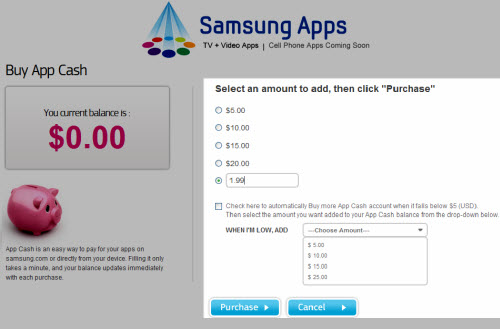
‘Buy App Cash’ screen is displayed. Here you have the option of selecting
how much App cash you want to purchase. The options are $5, $10, $15, $20
or other amount. You can then select whether or not you want Samsung
apps to automatically buy more Apps Cash when your account falls below $5.
Leave the box blank if you do not want this option. When done, click Purchase.
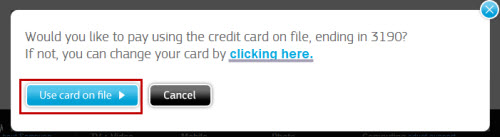
- If
you have taken too long to respond, you may be asked to confirm if you want
to use the card on file or add a new credit card. Click use card
on file so the card you previously added is used.
- A
confirmation screen is displayed. To print a receipt, click Print Your
Receipt. You will also receive an email confirming the purchase.
- You
can now purchase Apps either on Samsung.com/us/appstore or directly from
your player by selecting 'Samsung Apps'. See below for helpful hints on using the App Store.
Helpful
Hints
- You
will now need to link your Samsung Apps ID to your Smart Hub ID using
your Blu-ray Player, click here for step by step instructions.
- Each
App will have two icons below its title. A Disc icon
 indicates
the App is available for Blu-rays and Home Theater Systems, a TV icon
indicates the app is available for TV’s only. If both icons are listed,
the App is compatible with all. indicates
the App is available for Blu-rays and Home Theater Systems, a TV icon
indicates the app is available for TV’s only. If both icons are listed,
the App is compatible with all.
- The
easiest way to see which Apps are compatible with your player is to
go to Samsung Apps on your player. Only compatible Apps are be displayed.
- For
a list of compatible Apps for your player, click here.
|


