|
Problem:
Network Connection
Solution:
Follow these steps to connect your washer to the wireless network in your home:
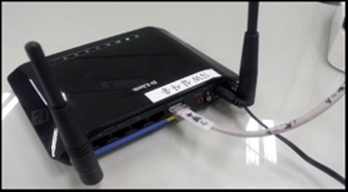
- Make sure your wireless router has the LAN cable and power supply connected. Also, check that the wireless router is functioning properly.
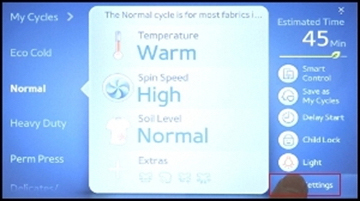
- Touch the Settings icon located in the bottom right-hand corner of the screen.
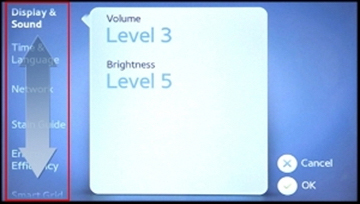
- On the left side of the screen, scroll through the menu by lightly dragging your finger up and down.
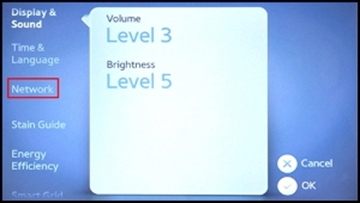
- Touch Network when you see it in the menu.
- Under Wi-Fi Status, touch Off.
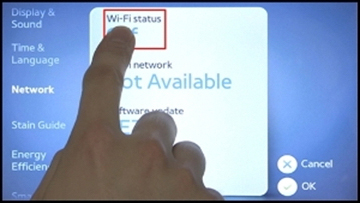
- When the On/Off buttons appear, touch On. The On button will turn blue when selected.
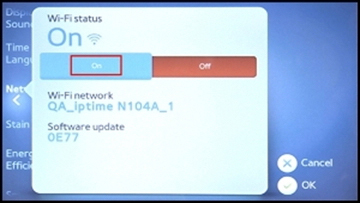
- Once your Wi-Fi Status is set to On, touch the Configure button located under Wi-Fi Network.
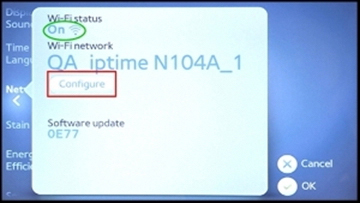
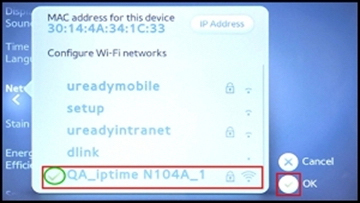
- When the list of Access Point (AP) appears, select a Wi-Fi network by touching the network��s name.
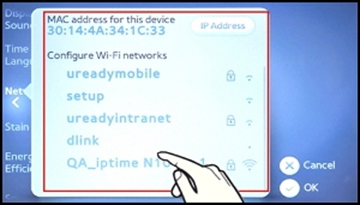
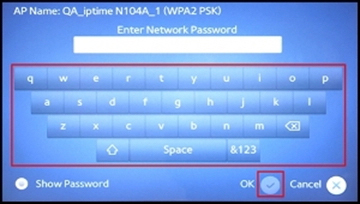
- If your network is secured, you will be prompted to enter a password. Use the onscreen keyboard to enter the password, and then touch the circle with the check mark in it next to OK.
- Wait for the washer to connect. Make sure there is a green check mark next to your network��s name in the AP list. Verify that your Wi-Fi receiver is turned on, and then touch the circle with the check mark in it 3 times to return to the Home screen.
NOTE
The unit��s MAC Address is located at the top of this screen. You will need the MAC Address to register your unit at www.samsungsmartappliance.com if the Outdoor control will be used.
|

