|
No title
Question:
What is the Smart Care feature?
Answer:
- Smart Care is a feature of the Samsung
Smart Washer/Dryer app (available on both Android and iOS), which functions
alongside the same feature on your appliance. When you use the Smart Care
button on your washing machine or dryer, it will run a self diagnosis and
then display a code to indicate the current status. Then, you can use the
Samsung Smart Washer/Dryer app to identify and interpret the code. You can
use your phone's camera to capture the code, or you can manually draw the
code.
- This app was designed for older models
of Wi-Fi-capable washing machines and dryers. The Smart Care feature does
not use Wi-Fi since it uses the phone's camera instead. Many models have
Smart Care but do not have Wi-Fi, which means you will need to use the SmartThings
app instead.
- If you have already connected your washing
machine or dryer to the SmartThings app, any errors that occur on the appliance
will be sent as notifications to SmartThings. However, you can still use
the Smart Care function in SmartThings if you wish.
Using the Smart Care app
To start using Smart Care to understand
the symbols or codes on your appliance, make sure you have the Samsung Smart
Washer/Dryer app installed on your phone. It can be downloaded from the
Play Store on Android devices and from the App Store on iOS devices.
- Navigate to and open the Samsung Smart
Washer/Dryer app on your phone, and then tap the Smart Care tab.
- Note: You may need
to go through the initial setup if this is your first time using the
app.
- Tap the Smart Care option, read the information,
and then tap Next. If needed, allow the necessary permissions.
- Next, touch the Smart Care button on your
washing machine or dryer.
- Note: On some models,
Smart Care will appear under a different button (such as Soil) instead
of having its own button. Press and hold the button above Smart Care
for a few seconds to activate the feature.
- Using the app on your phone, align the
camera with the code on the control panel. You can use the green dots on
the screen as a guide.
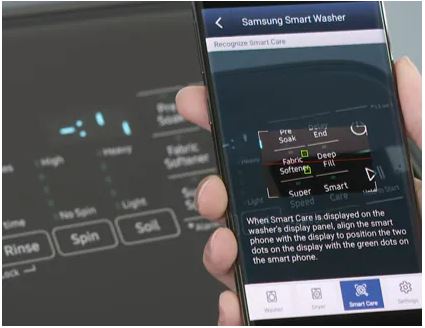
- If you're having trouble scanning the
code, you may need to hold your phone at an angle to avoid reflections from
the control panel. It may take several attempts for the code to be recognized.
You can also enter the code manually.
- When the app recognizes the code successfully,
it will display on your phone's screen. Keep in mind that the error code
may look like a sequence of partial lines instead of a whole number. Make
sure it matches the code on your appliance, and then tap OK.
- The app will display the status of your
washing machine or dryer and any relevant troubleshooting steps. The app
will also keep a record of previous codes for help with further troubleshooting.
8.
If you need assistance, tap the Service Center option in
the app.
9. If you are still seeing errors
after using Smart Care, please contact
us.
|

