|
Cyber
Question:
How
to change the aspect ratio of my television through the on-screen menu?
Answer:
To
change the aspect ratio of your television through the on-screen menu, follow
these steps:
- With
the TV powered on, press the MENU button on your TV or remote.

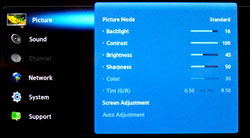
- Highlight
the Picture item on the menu, and then press the ENTER button on the remote
or the Source button on the TV.
Note:
If you are using the buttons on the TV, the Source button acts as the Enter
button when the TV displays the menu.
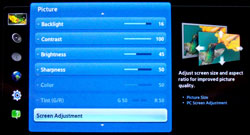
- Use
the ▲ or ▼ arrow on the remote or the Ch + or - button on the TV to highlight
"Screen Adjustmet", and then press the ENTER button on the remote or the
Source button on the TV.
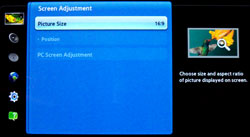
- Use
the ▲ or ▼ arrow on the remote or the Ch + or - to highlight "Picture
Size" in the Screen Adjustment menu. The current
picture size is displayed on the left, and then press ENTER on the
remote or Source on the TV.
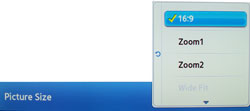
- In
the drop down menu use
the ▲ or ▼ arrow button on the remote or the Ch + or - button on the TV to highlight
the aspect ratio you want. Then, press the ENTER button on the remote
or the Source button on the TV.
- Press EXIT
on the remote to leave the menu.
|

